
Setting up a secondary device ensures the security of your account by adding a two-factor authentication. Two-factor authentication requires an additional verification method, making it difficult for unauthorized users to access your account.
Go to Logpoint login page and log in using your authentication.
Click Get started.
Select a device for two-factor authentication.
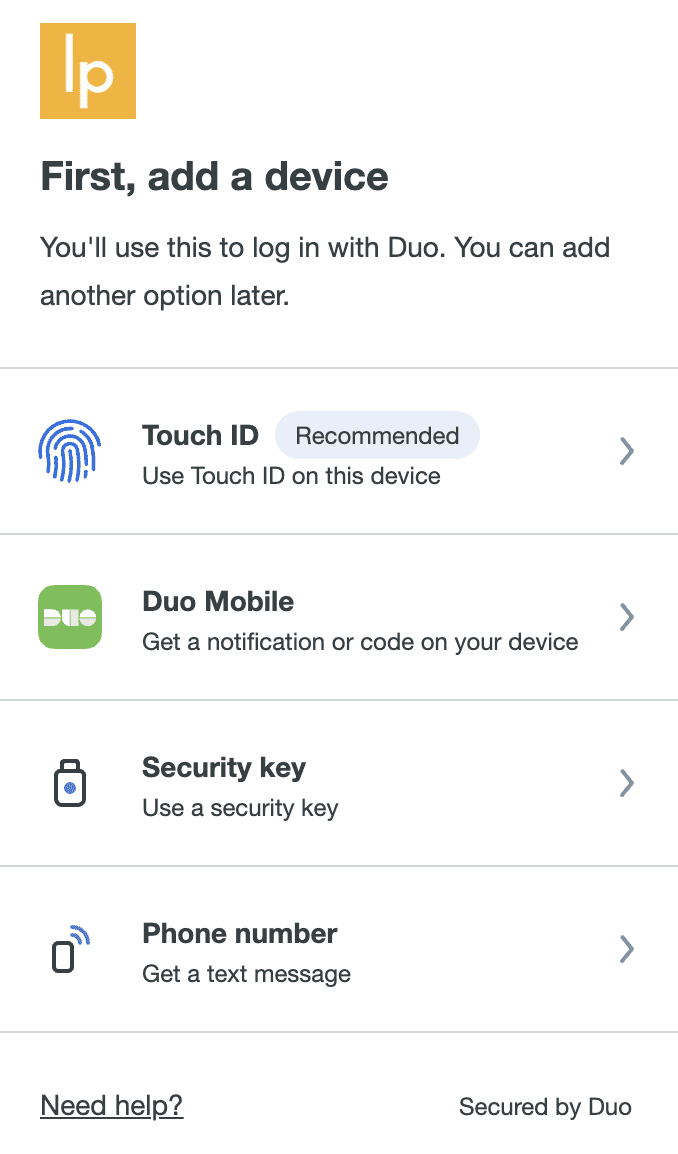
Adding a Device
3.1. Select Touch ID to enroll your fingerprint and log in using it. We recommend using Touch ID as your two-factor authentication device.
3.2. Select Duo Mobile to get push notification in it.
3.3. Select Security Key to enroll a security key and log in using it.
3.4. Select Phone number to get the One-Time Password (OTP) text message in it.
Click Continue.
Create a passkey for duosecurity.com and click Continue. This will save the passkey on your device.
When prompted, use the fingerprint sensor and allow your browser to use Touch ID. After the Touch ID is successfully added, click Continue.
Select one more devices for two-factor authentication. Click I don’t want to add more devices to continue without adding more devices.
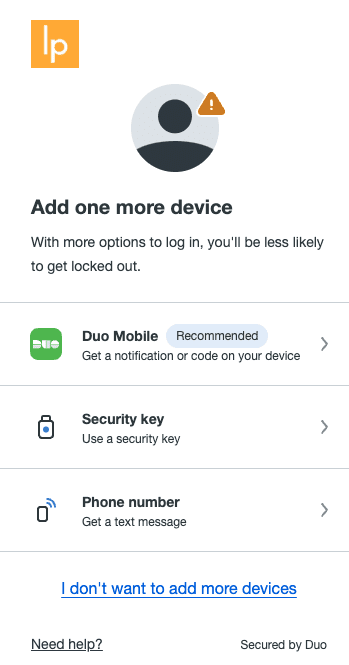
Entering Phone Number
After the setup is complete, click Log in with Duo.